Data can be gathered through different sources such as collecting from trade shows and campaigns, record database, etc. Importing data from external sources into the Zoho CRM is the most crucial lead creation activity in any business. Hence it has to be easy to maintain it.
- Individual files can be imported, one at a time, to a specific module.
- You can also migrate data from other CRM accounts in the Zoho CRM account. The wizard enables you to attach the CSV file of the module to be migrated and set the supported Date and Time format in the import file to avoid values being ignored during the migration. You can also ask Zoho CRM to notify you when the import is complete by selecting the Send Email Notification option.
Import Checklist
Permission
It is essential to have access to import the data. If you don’t have permission, the import link will be hidden in your user interface.
Characters not allowed
The imported data should not contain data enclosed in .
Mandatory Fields
Make sure you do not leave any mandatory fields empty. Each mandatory field must contain a value. For instance, when importing lead information, each account record must include a Lead Name. Please note that you cannot proceed to the next step without mapping the mandatory fields
Check box Data
The data you plan to import from Boolean or check box fields must contain values that properly convert during the import process.Imported data from Boolean and check box fields are converted as follows:
- If the check box is selected: True or 1
- If the check box is not selected: False or 0
Drop-down List
Field Names
Ensure the first row in the data contains the field name or heading rather than the field value. These heading field name values help identify the data when you map the new data to the existing fields in Zoho CRM.
Blank rows in the import file
Make sure not to leave blank rows in between rows of data. More than ten blank rows in the file might indicate the end of the file.
- File Size
- Make sure the file size does not exceed the following limits according to your edition of Zoho CRM:
- CSV files: Enterprise and Ultimate – 25 MB, Professional and Standard – 10 MB, Free – 5 MB.
- VCF files: 5 MB for all editions.
File Format
Rows
- Number of rows that can be imported depends on the edition:
- Standard – 10,000; Professional – 20,000; Enterprise – 30,000; Ultimate – 50,000.
External field
Any field present in the. CSV files can be mapped with an external field present in the CRM module. The value of the external ID field can be updated only through API.
Import Limits
For .XLS, .XLSX or .VCF format, you can import a maximum of 5000 records/batch for all CRM editions. To import more than 5000 records/batch, your import file must be in. CSV format only.
Import Data to a Module
Click the appropriate [Module] tab (e.g., Leads, Contacts, Accounts, etc).Click Browse to upload the file or drag and drop the file in the From File section.The character encoding will be automatically detected.
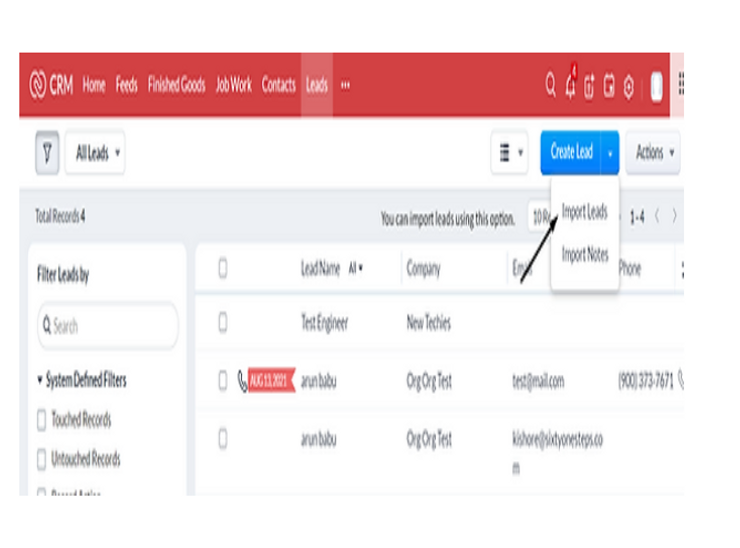
Click Browse to upload the file or drag and drop the file in the From File section.
The character encoding will be automatically detected.

You can also change the character coding from the dropdown list if needed.

You can also select the layout for which you want to import the records. If you do not have a layout created, the records will be imported to the standard layout and the option to choose a layout will not be available.

You can update the existing records using this option. This option helps you filter existing records that need to be updated. Additionally, you can choose to skip updating empty values in the records.Choose this option to add new records as well as update the changes in the existing records

Map fields from the import file to those in Zoho CRM. Click Mapped and Unmapped to view the columns that are mapped and not mapped respectively with the fields in Zoho CRM.Reset Field Mapping –In this field any mapping you have done so far will be removed and you can start over.Apply Auto Mapping link to let CRM map the import columns with matching fields.

You can also create a field if the particular field does not exist in Zoho CRM. You can do that by adding a new field and mapping them accordingly.Trigger automation and process management, to allow related actions to be performed on records that are created or updated through import.

Assign follow-up tasks to drop down list or create a new task by clicking Create Workflow Task. Select the checkbox to Enable Manual Lead Approval .The records will be manually approved by the admin before being assigned to specific users. This option is available only for Leads, Contacts, Cases and custom modules

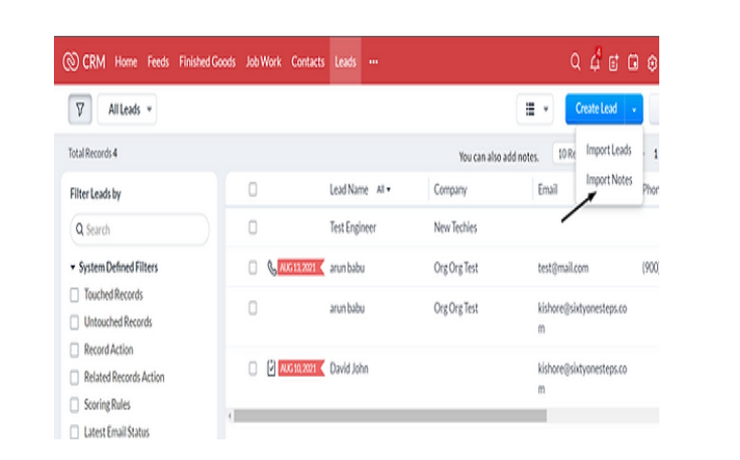
Import notes
You can import notes as shown in the picture given below.
Export Module Data
The export limit for reports
- You can export 2000 records per batch (records from a single page of a report).
- In CSV format, you can export 20,000 records from the first page of a report and 2000 from the subsequent page.
We can help you design a customised, scalable CRM – offer training and one-on-one support on-demand before and after the implementation. We could speed up the sales pipeline by tailoring data-driven automated marketing campaigns while generating new leads.